> ## Documentation Index
> Fetch the complete documentation index at: https://docs.trusapien.com/llms.txt
> Use this file to discover all available pages before exploring further.
# Chat
> The central workspace where every conversation happens, with seven capabilities, three conversation types, and prompt suggestion cards
Chat is the central workspace in Trusapien. Every conversation happens here: working with a specialist Agent, running a multi-step Workflow, or asking a general question. The home screen puts you one click away from any of your 77 Agents, 71 Workflows, or seven built-in capabilities.
 ## The home screen
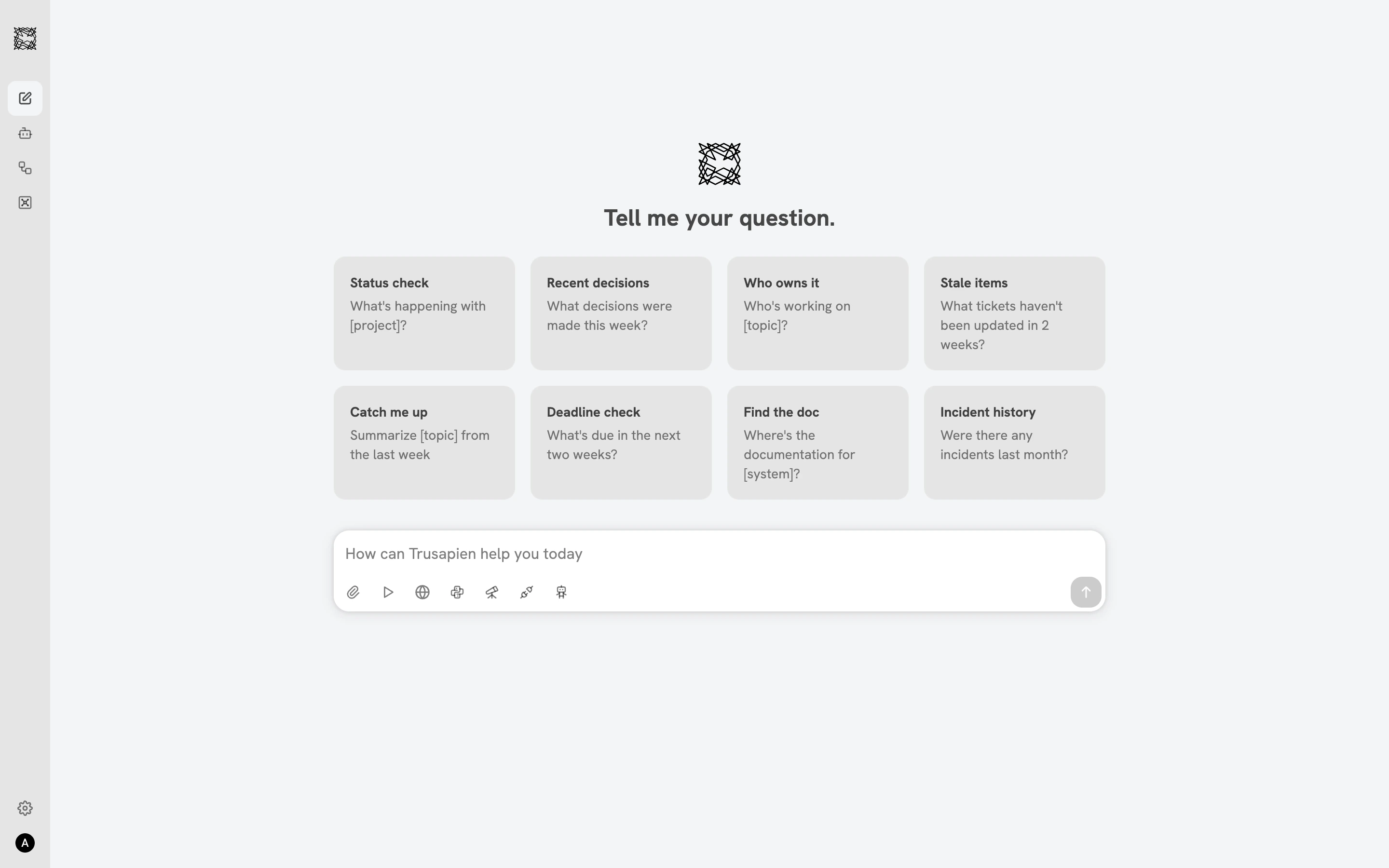
When you open Chat, three zones organize your workspace. The collapsible **sidebar** on the left provides navigation to Agents, Workflows, and Vaults, along with your scrollable conversation history. The **greeting area** in the center displays the Trusapien brand mark, a rotating greeting, and eight prompt suggestion cards arranged in two rows of four. The **input bar** at the bottom is where you type, with seven capability icons below it.
The eight prompt cards are quick-start shortcuts. Each card has a bold title and a description with a placeholder that your Agent fills contextually:
| Card | Prompt |
| ---------------- | --------------------------------------------- |
| Status check | What's happening with \[project]? |
| Recent decisions | What decisions were made this week? |
| Who owns it | Who's working on \[topic]? |
| Stale items | What tickets haven't been updated in 2 weeks? |
| Catch me up | Summarize \[topic] from the last week |
| Deadline check | What's due in the next two weeks? |
| Find the doc | Where's the documentation for \[system]? |
| Incident history | Were there any incidents last month? |
Click any card to send the prompt immediately. The conversation continues naturally from the response.
## Seven capabilities
The input bar includes seven capability icons you can toggle on to enhance any conversation:
| Icon | Capability | Behavior |
| ----------- | ----------------------- | ------------------------------------------------------------------------- |
| Paperclip | **File Attachment** | Opens a popup: Upload Files, Select from Vault, or Recent Files |
| Play button | **Actions & MCP** | Opens a panel showing connected tools with search and "More Actions" link |
| Globe | **Web Search** | Toggles on as a blue pill/chip for current internet information |
| Python logo | **Data & Graph** | Toggles on as a blue pill/chip for calculations and visualizations |
| Telescope | **Deep Research** | Toggles on as a blue pill/chip for extended, in-depth research |
| Two-plug | **Knowledge Grounding** | Toggles on as a pill; reveals per-Connector source filters |
| Robot head | **Agents** | Opens a two-column overlay with department list and Agent search |
One capability is active at a time. Click the icon to activate, click again to deactivate. When no capability is toggled, the conversation operates as a general-purpose chat.
## Three conversation types
Your sidebar shows three distinct conversation types, each with its own icon:
* **Agent conversations** (Agent icon + name): Started by selecting an Agent. A persistent blue identity banner appears at the top. Four capability icons are available (Attachment, Actions, Deep Research, Knowledge Grounding).
* **Workflow conversations** ("Workflow: ..." prefix): Started by running a Workflow. A split-screen layout shows the conversation on the left and Workflow progress on the right.
* **Regular conversations** (no icon): Started from the Chat home. All seven capability icons are available.
You can **rename** any conversation and **share** it via a shareable link from the sidebar.
## Response interaction
Below every response, three icons let you provide feedback or save the output. **Thumbs up** marks a helpful response. **Thumbs down** flags a response that missed the mark. **Copy** copies the full response to your clipboard.
Choose a specialist for focused work
See how to toggle capabilities in any conversation
## The home screen
When you open Chat, three zones organize your workspace. The collapsible **sidebar** on the left provides navigation to Agents, Workflows, and Vaults, along with your scrollable conversation history. The **greeting area** in the center displays the Trusapien brand mark, a rotating greeting, and eight prompt suggestion cards arranged in two rows of four. The **input bar** at the bottom is where you type, with seven capability icons below it.
The eight prompt cards are quick-start shortcuts. Each card has a bold title and a description with a placeholder that your Agent fills contextually:
| Card | Prompt |
| ---------------- | --------------------------------------------- |
| Status check | What's happening with \[project]? |
| Recent decisions | What decisions were made this week? |
| Who owns it | Who's working on \[topic]? |
| Stale items | What tickets haven't been updated in 2 weeks? |
| Catch me up | Summarize \[topic] from the last week |
| Deadline check | What's due in the next two weeks? |
| Find the doc | Where's the documentation for \[system]? |
| Incident history | Were there any incidents last month? |
Click any card to send the prompt immediately. The conversation continues naturally from the response.
## Seven capabilities
The input bar includes seven capability icons you can toggle on to enhance any conversation:
| Icon | Capability | Behavior |
| ----------- | ----------------------- | ------------------------------------------------------------------------- |
| Paperclip | **File Attachment** | Opens a popup: Upload Files, Select from Vault, or Recent Files |
| Play button | **Actions & MCP** | Opens a panel showing connected tools with search and "More Actions" link |
| Globe | **Web Search** | Toggles on as a blue pill/chip for current internet information |
| Python logo | **Data & Graph** | Toggles on as a blue pill/chip for calculations and visualizations |
| Telescope | **Deep Research** | Toggles on as a blue pill/chip for extended, in-depth research |
| Two-plug | **Knowledge Grounding** | Toggles on as a pill; reveals per-Connector source filters |
| Robot head | **Agents** | Opens a two-column overlay with department list and Agent search |
One capability is active at a time. Click the icon to activate, click again to deactivate. When no capability is toggled, the conversation operates as a general-purpose chat.
## Three conversation types
Your sidebar shows three distinct conversation types, each with its own icon:
* **Agent conversations** (Agent icon + name): Started by selecting an Agent. A persistent blue identity banner appears at the top. Four capability icons are available (Attachment, Actions, Deep Research, Knowledge Grounding).
* **Workflow conversations** ("Workflow: ..." prefix): Started by running a Workflow. A split-screen layout shows the conversation on the left and Workflow progress on the right.
* **Regular conversations** (no icon): Started from the Chat home. All seven capability icons are available.
You can **rename** any conversation and **share** it via a shareable link from the sidebar.
## Response interaction
Below every response, three icons let you provide feedback or save the output. **Thumbs up** marks a helpful response. **Thumbs down** flags a response that missed the mark. **Copy** copies the full response to your clipboard.
Choose a specialist for focused work
See how to toggle capabilities in any conversation