> ## Documentation Index
> Fetch the complete documentation index at: https://docs.trusapien.com/llms.txt
> Use this file to discover all available pages before exploring further.
# Connectors
> 39 Connectors across 7 categories link your organization's tools so your Agents search your real data
Your tools stay where they are. Trusapien connects to them, and your Agents search that data through Knowledge Grounding. **39 Connectors across 7 categories** cover knowledge bases, cloud storage, ticketing systems, sales tools, code repositories, and more. Once connected, your Agents deliver answers grounded in what your organization actually knows.
 ## 7 categories, 39 Connectors
| Category | Connectors |
| ------------------------------- | ------------------------------------------------------------------------------------------------------------------------------------------ |
| **Knowledge Base & Wikis** | Confluence, SharePoint, Notion, BookStack, Document360, Discourse, GitBook, Slab, Outline, Google Sites, Guru, MediaWiki, Axero, Wikipedia |
| **Cloud Storage** | Google Drive, Dropbox, S3, Google Storage, Egnyte, Oracle Storage, R2 |
| **Ticketing & Task Management** | Jira, Zendesk, Airtable, Linear, Freshdesk, Asana, ClickUp, ProductBoard |
| **Sales** | Salesforce, HubSpot, Gong, Fireflies, Highspot, Loopio |
| **Code Repositories** | GitHub, GitLab, Bitbucket |
| **Others** | File (upload and index documents directly) |
## Setting up a Connector
Go to **Settings > Connectors**, then click **"Add Connector."** The setup wizard walks you through three steps:
Select an existing credential or create a new one with the authentication your tool requires. Each credential stores access details securely.
Name your Connector, enter the connection URL, and choose what to index. Indexing scope varies by Connector type. For Confluence, you can choose everything, a specific space, an individual page, or a CQL query.
Configure three settings: **Prune Frequency** (how often to remove deleted documents, default 24 hours), **Refresh Frequency** (how often to pull new documents, in minutes), and **Indexing Start Date** (exclude documents older than a specific date).
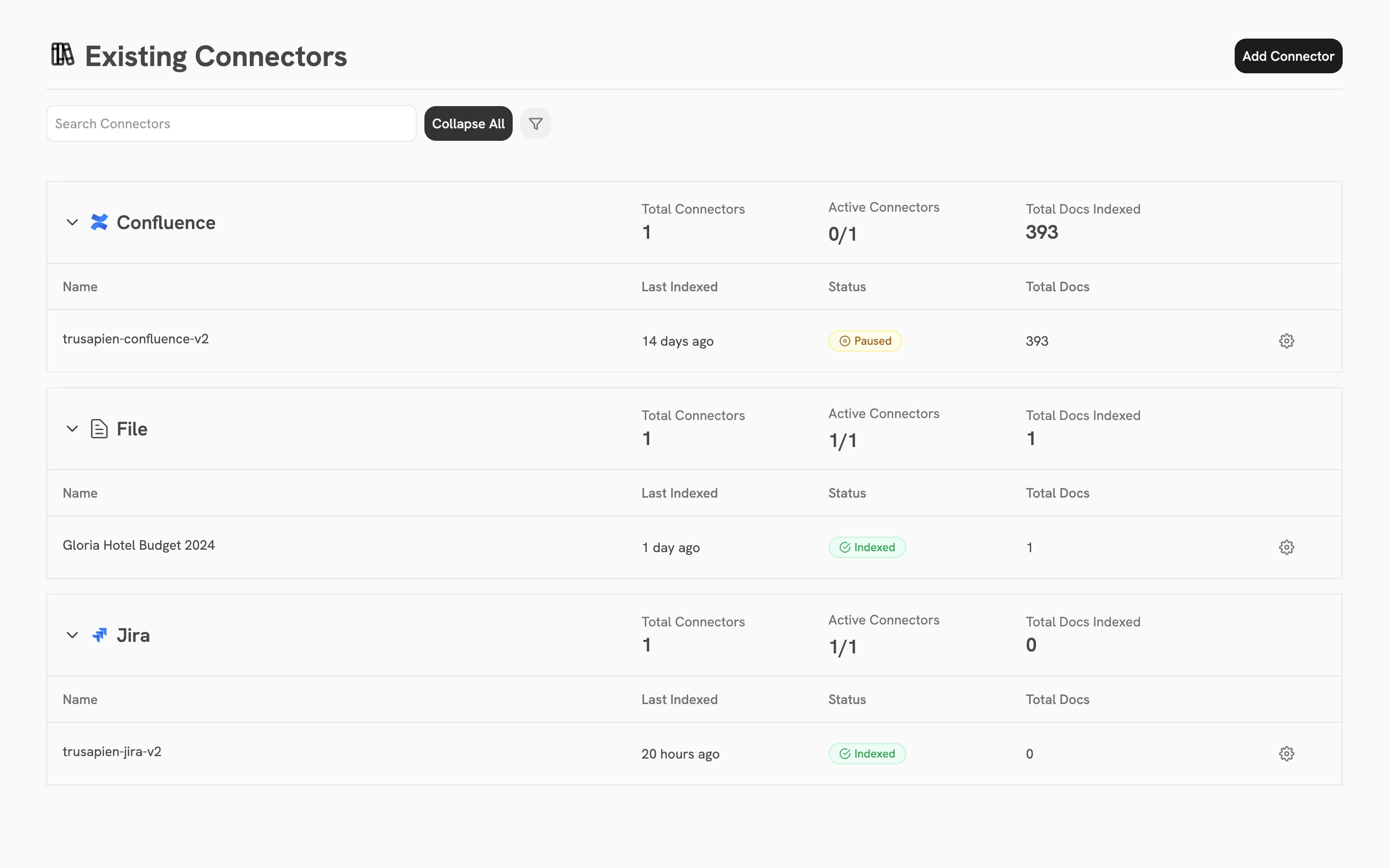
After setup, your Connector appears on the Existing Connectors page. Each row shows the Connector name, active instance count, total documents indexed, and a status badge (green "Indexed" or yellow "Paused"). Click the gear icon on any instance to view details, re-index, pause, or delete.
For large files and datasets, the **File Connector** is the recommended path. Your Agents search and analyze the data automatically through Knowledge Grounding. This handles large spreadsheets and data exports that benefit from indexed search.
Having trouble setting up a Connector? Contact us at [support@trusapien.com](mailto:support@trusapien.com)
Setup guides for all 39 Connectors
How your Agents search your connected data
## 7 categories, 39 Connectors
| Category | Connectors |
| ------------------------------- | ------------------------------------------------------------------------------------------------------------------------------------------ |
| **Knowledge Base & Wikis** | Confluence, SharePoint, Notion, BookStack, Document360, Discourse, GitBook, Slab, Outline, Google Sites, Guru, MediaWiki, Axero, Wikipedia |
| **Cloud Storage** | Google Drive, Dropbox, S3, Google Storage, Egnyte, Oracle Storage, R2 |
| **Ticketing & Task Management** | Jira, Zendesk, Airtable, Linear, Freshdesk, Asana, ClickUp, ProductBoard |
| **Sales** | Salesforce, HubSpot, Gong, Fireflies, Highspot, Loopio |
| **Code Repositories** | GitHub, GitLab, Bitbucket |
| **Others** | File (upload and index documents directly) |
## Setting up a Connector
Go to **Settings > Connectors**, then click **"Add Connector."** The setup wizard walks you through three steps:
Select an existing credential or create a new one with the authentication your tool requires. Each credential stores access details securely.
Name your Connector, enter the connection URL, and choose what to index. Indexing scope varies by Connector type. For Confluence, you can choose everything, a specific space, an individual page, or a CQL query.
Configure three settings: **Prune Frequency** (how often to remove deleted documents, default 24 hours), **Refresh Frequency** (how often to pull new documents, in minutes), and **Indexing Start Date** (exclude documents older than a specific date).
After setup, your Connector appears on the Existing Connectors page. Each row shows the Connector name, active instance count, total documents indexed, and a status badge (green "Indexed" or yellow "Paused"). Click the gear icon on any instance to view details, re-index, pause, or delete.
For large files and datasets, the **File Connector** is the recommended path. Your Agents search and analyze the data automatically through Knowledge Grounding. This handles large spreadsheets and data exports that benefit from indexed search.
Having trouble setting up a Connector? Contact us at [support@trusapien.com](mailto:support@trusapien.com)
Setup guides for all 39 Connectors
How your Agents search your connected data