> ## Documentation Index
> Fetch the complete documentation index at: https://docs.trusapien.com/llms.txt
> Use this file to discover all available pages before exploring further.
# Vaults
> Persistent file storage with folders, search, filters, and the ability to chat with your documents
Vaults are your persistent file storage within Trusapien. Upload documents, organize them in folders and subfolders, and access them across any conversation. Select files and start a new conversation with them pre-attached, or let your Agents find them automatically through Knowledge Grounding.
 ## Organizing your documents
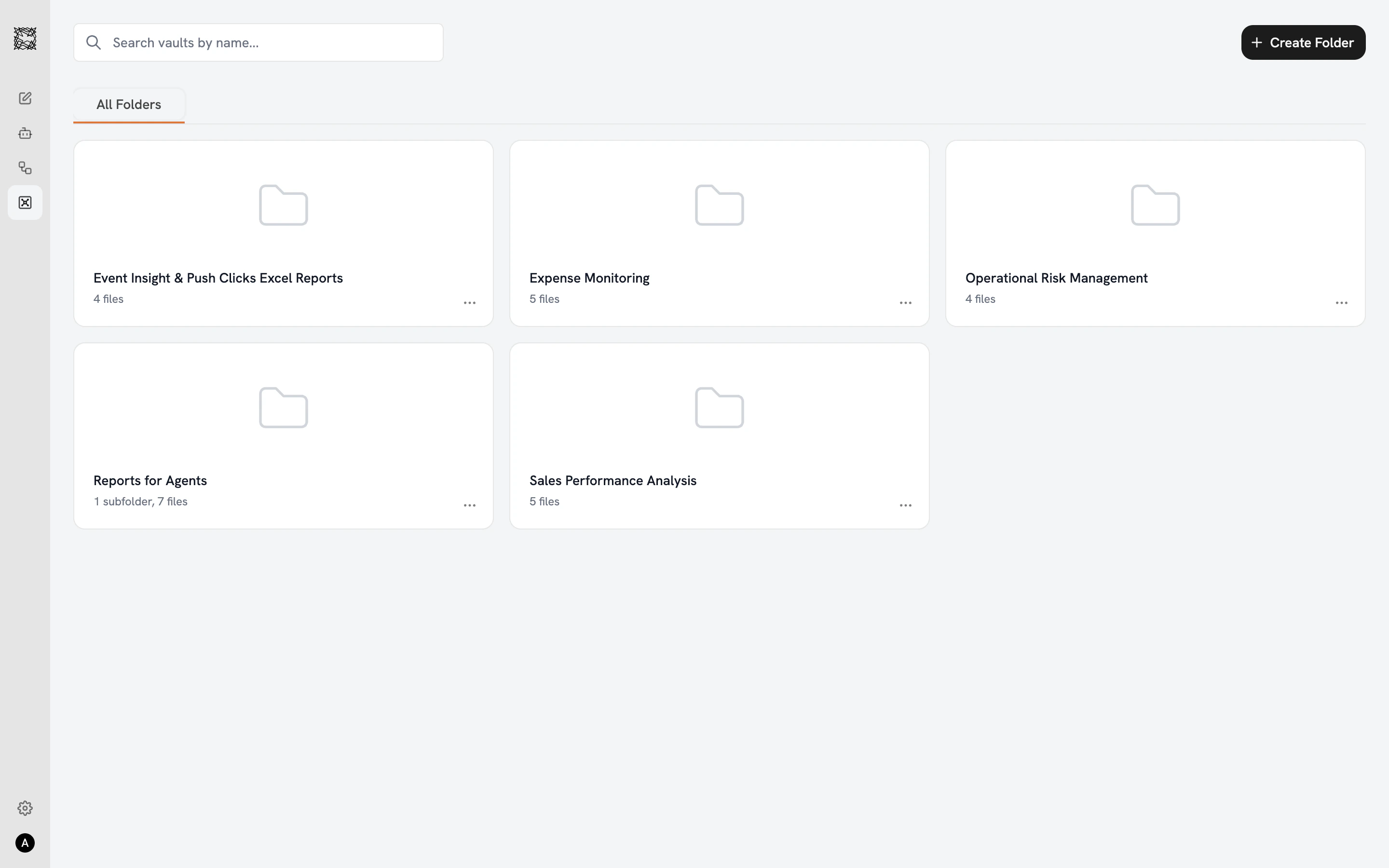
The Vaults main page displays your folders in a three-column grid. Each folder card shows the folder name, file count, and subfolder count. Click **"+ Create Folder"** to add a new folder, and create subfolders within any folder for deeper organization.
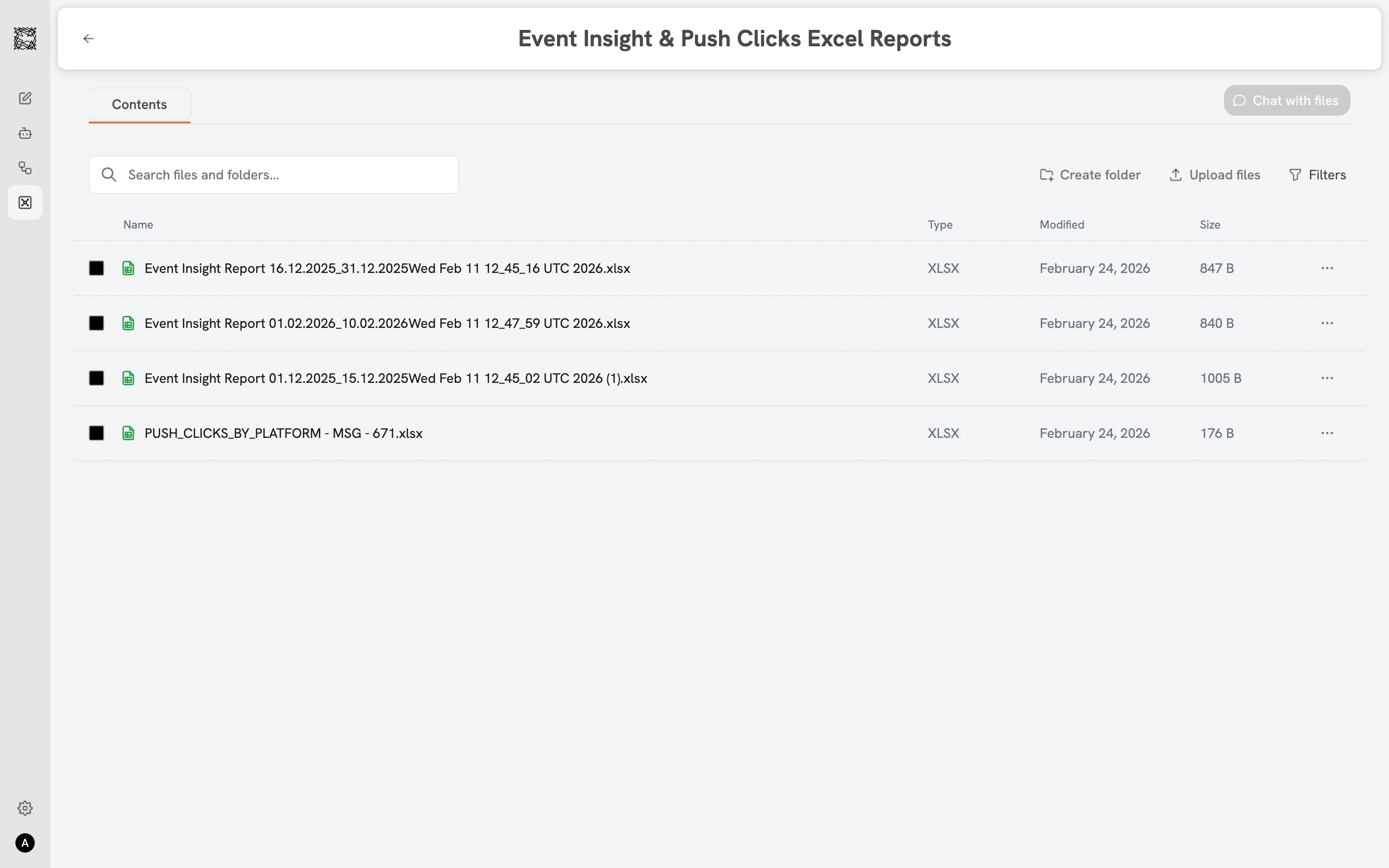
Inside a folder, a file table shows each document's name, type, date modified, and size. Use the **search bar** to find files by name, or click **Filters** to narrow by file type (PDF, DOC/DOCX, XLS/XLSX, TXT, Images), date modified, or file size.
## Organizing your documents
The Vaults main page displays your folders in a three-column grid. Each folder card shows the folder name, file count, and subfolder count. Click **"+ Create Folder"** to add a new folder, and create subfolders within any folder for deeper organization.
Inside a folder, a file table shows each document's name, type, date modified, and size. Use the **search bar** to find files by name, or click **Filters** to narrow by file type (PDF, DOC/DOCX, XLS/XLSX, TXT, Images), date modified, or file size.
 ## Uploading documents
Click **"Upload files"** inside any folder. Drag and drop files into the upload area, or click to browse your device. Supported formats include PDF, DOC, DOCX, XLS, XLSX, and more.
## Chat with files
Select one or more files using the checkboxes, then click the green **"Chat with files"** button. A new conversation opens with your selected files pre-attached to the input bar. All seven capability icons remain available. Ask questions about the documents, request summaries, compare content, or run analysis with Data & Graph enabled.
## Managing files
Each file and folder has a context menu (the "..." icon) with two options: **Move** (opens a folder picker to relocate the file) and **Delete** (removes the file permanently).
For large files and datasets, use the **File Connector** instead of Vaults. Your Agents search and analyze the data automatically through Knowledge Grounding. The File Connector handles large spreadsheets and data exports that benefit from indexed search across your entire organization.
How your Agents search your Vault documents
Connect your organization's existing tools
## Uploading documents
Click **"Upload files"** inside any folder. Drag and drop files into the upload area, or click to browse your device. Supported formats include PDF, DOC, DOCX, XLS, XLSX, and more.
## Chat with files
Select one or more files using the checkboxes, then click the green **"Chat with files"** button. A new conversation opens with your selected files pre-attached to the input bar. All seven capability icons remain available. Ask questions about the documents, request summaries, compare content, or run analysis with Data & Graph enabled.
## Managing files
Each file and folder has a context menu (the "..." icon) with two options: **Move** (opens a folder picker to relocate the file) and **Delete** (removes the file permanently).
For large files and datasets, use the **File Connector** instead of Vaults. Your Agents search and analyze the data automatically through Knowledge Grounding. The File Connector handles large spreadsheets and data exports that benefit from indexed search across your entire organization.
How your Agents search your Vault documents
Connect your organization's existing tools