> ## Documentation Index
> Fetch the complete documentation index at: https://docs.trusapien.com/llms.txt
> Use this file to discover all available pages before exploring further.
# Workflows
> 71 multi-step Workflows that bring specialist Agents together in sequence to produce comprehensive deliverables
Some work needs more than one perspective. A competitive analysis benefits from market research, financial review, and strategic synthesis. A campaign plan draws on audience analysis, messaging strategy, and content planning. **71 Workflows across 11 departments** bring multiple Agents together to handle exactly this kind of work.
 ## How Workflows work
Each Workflow runs a sequence of specialist Sub-agents. You choose a Workflow, configure inputs (Connectors and files) for each Sub-agent step, and click **Start Workflow**. Each Sub-agent executes in order, passing its output to the next. The final Sub-agent synthesizes everything into a single comprehensive deliverable.
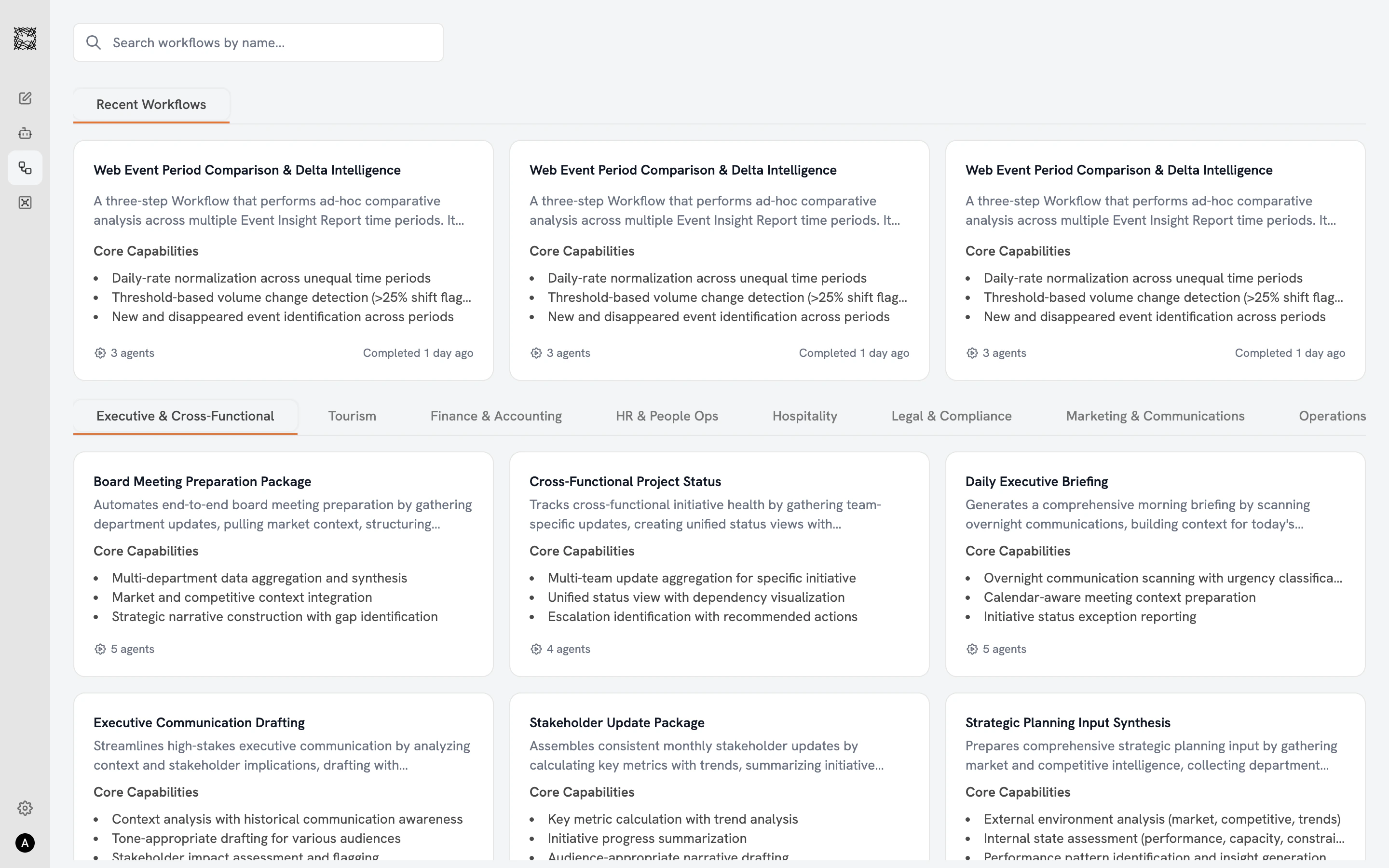
The Workflow catalog shows each Workflow's name, description, core capabilities, and an **Agent count badge** (e.g., "4 agents") at the bottom of each card. Active Workflows display a green **"Running"** badge with progress ("Agent 1 of 4").
Attaching relevant Connectors and files to each Sub-agent step produces the best results. Without inputs, the Workflow still runs, but Sub-agents will have limited context for analysis.
## The setup page
After clicking **"Use Workflow"** from the detail view, a setup page shows each Sub-agent step displayed vertically with numbered orange circle badges. Each step includes a full description, core capabilities, and buttons to **add Connectors** and **add files** from your Vault. Status indicators in the top-right corner of each step track progress: empty (not started), spinning (working), or green checkmark (completed).
Click **Start Workflow** at the bottom when your inputs are configured.
## Watching execution
Once started, Sub-agents execute one by one. Status indicators animate through the sequence. On the catalog page, your running Workflow shows a green badge with real-time progress.
The execution view uses a split-screen layout: the **left side** shows the chat conversation with Sub-agent outputs, and the **right side** shows the persistent Workflow panel with all Sub-agent steps and their statuses. After the final Sub-agent delivers its output, the conversation continues: ask follow-up questions, request additional analysis, or explore the suggested next steps.
## 11 departments, 71 Workflows
| Department | Examples |
| -------------------------------- | ---------------------------------------------------------------------- |
| **Executive & Cross-Functional** | Board packages, executive briefings, stakeholder updates |
| **Sales & Business Development** | Proposals, deal strategy, pipeline reviews, win/loss analysis |
| **Marketing & Communications** | Campaigns, content calendars, press releases, brand audits |
| **Finance & Accounting** | Budget variance, audit prep, financial reports, expense analysis |
| **Product & Technology** | PRD creation, release docs, test plans, documentation audits |
| **HR & People Ops** | Onboarding packages, job descriptions, policy creation, training |
| **Legal & Compliance** | Contract review, compliance audits, privacy assessments, risk reports |
| **Operations & Procurement** | Vendor evaluation, SOPs, quality audits, RFP packages |
| **Strategy & Research** | Competitive briefings, market trends, scenario development |
| **Tourism** | Occupancy forecasting, revenue analysis, financial projections |
| **Hospitality Operations** | Ops briefings, shift handovers, complaint analysis, compliance reviews |
Explore the full catalog organized by department
Configure inputs, start a Workflow, and explore results
## How Workflows work
Each Workflow runs a sequence of specialist Sub-agents. You choose a Workflow, configure inputs (Connectors and files) for each Sub-agent step, and click **Start Workflow**. Each Sub-agent executes in order, passing its output to the next. The final Sub-agent synthesizes everything into a single comprehensive deliverable.
The Workflow catalog shows each Workflow's name, description, core capabilities, and an **Agent count badge** (e.g., "4 agents") at the bottom of each card. Active Workflows display a green **"Running"** badge with progress ("Agent 1 of 4").
Attaching relevant Connectors and files to each Sub-agent step produces the best results. Without inputs, the Workflow still runs, but Sub-agents will have limited context for analysis.
## The setup page
After clicking **"Use Workflow"** from the detail view, a setup page shows each Sub-agent step displayed vertically with numbered orange circle badges. Each step includes a full description, core capabilities, and buttons to **add Connectors** and **add files** from your Vault. Status indicators in the top-right corner of each step track progress: empty (not started), spinning (working), or green checkmark (completed).
Click **Start Workflow** at the bottom when your inputs are configured.
## Watching execution
Once started, Sub-agents execute one by one. Status indicators animate through the sequence. On the catalog page, your running Workflow shows a green badge with real-time progress.
The execution view uses a split-screen layout: the **left side** shows the chat conversation with Sub-agent outputs, and the **right side** shows the persistent Workflow panel with all Sub-agent steps and their statuses. After the final Sub-agent delivers its output, the conversation continues: ask follow-up questions, request additional analysis, or explore the suggested next steps.
## 11 departments, 71 Workflows
| Department | Examples |
| -------------------------------- | ---------------------------------------------------------------------- |
| **Executive & Cross-Functional** | Board packages, executive briefings, stakeholder updates |
| **Sales & Business Development** | Proposals, deal strategy, pipeline reviews, win/loss analysis |
| **Marketing & Communications** | Campaigns, content calendars, press releases, brand audits |
| **Finance & Accounting** | Budget variance, audit prep, financial reports, expense analysis |
| **Product & Technology** | PRD creation, release docs, test plans, documentation audits |
| **HR & People Ops** | Onboarding packages, job descriptions, policy creation, training |
| **Legal & Compliance** | Contract review, compliance audits, privacy assessments, risk reports |
| **Operations & Procurement** | Vendor evaluation, SOPs, quality audits, RFP packages |
| **Strategy & Research** | Competitive briefings, market trends, scenario development |
| **Tourism** | Occupancy forecasting, revenue analysis, financial projections |
| **Hospitality Operations** | Ops briefings, shift handovers, complaint analysis, compliance reviews |
Explore the full catalog organized by department
Configure inputs, start a Workflow, and explore results