> ## Documentation Index
> Fetch the complete documentation index at: https://docs.trusapien.com/llms.txt
> Use this file to discover all available pages before exploring further.
# Settings
> Configure your Trusapien experience: theme, personalization, Memories, password, Connectors, and Actions
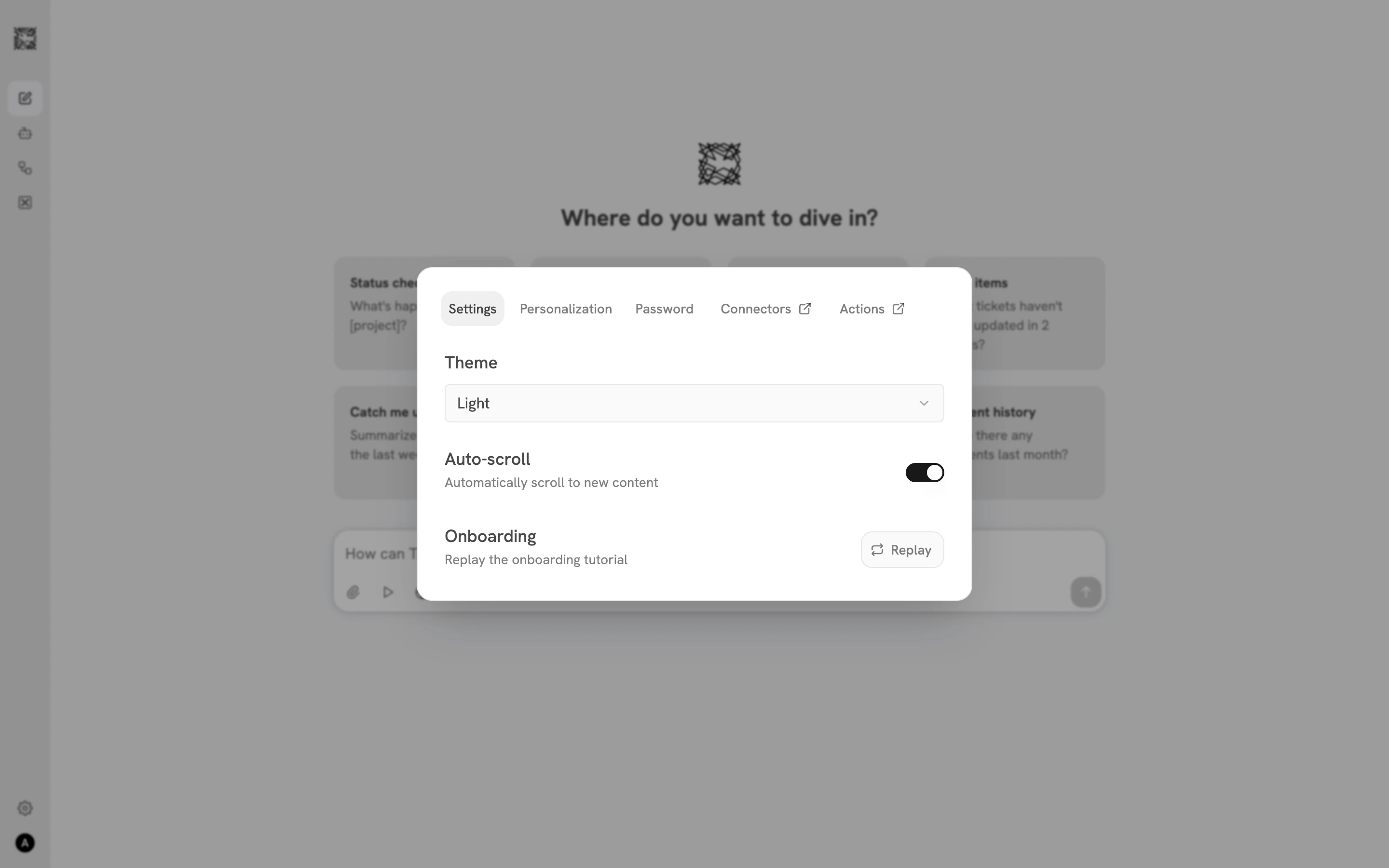
Settings control how Trusapien looks, what it knows about you, and which tools it connects to. Open Settings by clicking your **avatar** at the bottom left of the sidebar, then selecting **User Settings**. A modal overlay appears with five tabs.
 ## Settings (General)
The default tab shows three options:
* **Theme**: Choose Light, Dark, or System (follows your device setting).
* **Auto-scroll**: Toggle automatic scrolling to new content during conversations. On by default.
* **Onboarding**: Click **Replay** to run through the onboarding tutorial again at any time.
## Personalization
Tell Trusapien about yourself so your Agents can tailor responses to your context.
* **Name**: Your display name, shown in conversations.
* **Role**: Describe your role (e.g., "VP of Marketing" or "Senior Financial Analyst") to help shape responses.
* **Use Memories**: Toggle on to let Trusapien reference your saved Memories in future conversations.
* **Memories**: Personal notes you write that inform how your Agents work with you. Click **Add Memory** to create a text note. Write anything you want Trusapien to remember across conversations.
Start with two or three Memories about your role, your preferences, and the formats you work with most. For example: "I prefer executive summaries under 500 words," "Our fiscal year starts in April," or "Always include data sources in reports." Your Agents reference these Memories in every conversation.
Click **Save Personalization** to apply your changes.
## Password
Change your password by entering your current password, choosing a new one, and confirming. Click **Change Password** to save.
## Connectors
This tab redirects to the [Connectors](/connectors/overview) management page where you add, configure, and monitor the data sources linked to Trusapien. Your Agents search these sources through Knowledge Grounding.
## Actions
This tab redirects to the [Actions & MCP](/overview/platform/actions-mcp) management page where you connect external tools through MCP. This is where you set up GitHub, Atlassian, Notion, HubSpot, GitLab, or any custom MCP server.
Connect your organization's data sources
Connect external tools and services
## Settings (General)
The default tab shows three options:
* **Theme**: Choose Light, Dark, or System (follows your device setting).
* **Auto-scroll**: Toggle automatic scrolling to new content during conversations. On by default.
* **Onboarding**: Click **Replay** to run through the onboarding tutorial again at any time.
## Personalization
Tell Trusapien about yourself so your Agents can tailor responses to your context.
* **Name**: Your display name, shown in conversations.
* **Role**: Describe your role (e.g., "VP of Marketing" or "Senior Financial Analyst") to help shape responses.
* **Use Memories**: Toggle on to let Trusapien reference your saved Memories in future conversations.
* **Memories**: Personal notes you write that inform how your Agents work with you. Click **Add Memory** to create a text note. Write anything you want Trusapien to remember across conversations.
Start with two or three Memories about your role, your preferences, and the formats you work with most. For example: "I prefer executive summaries under 500 words," "Our fiscal year starts in April," or "Always include data sources in reports." Your Agents reference these Memories in every conversation.
Click **Save Personalization** to apply your changes.
## Password
Change your password by entering your current password, choosing a new one, and confirming. Click **Change Password** to save.
## Connectors
This tab redirects to the [Connectors](/connectors/overview) management page where you add, configure, and monitor the data sources linked to Trusapien. Your Agents search these sources through Knowledge Grounding.
## Actions
This tab redirects to the [Actions & MCP](/overview/platform/actions-mcp) management page where you connect external tools through MCP. This is where you set up GitHub, Atlassian, Notion, HubSpot, GitLab, or any custom MCP server.
Connect your organization's data sources
Connect external tools and services