

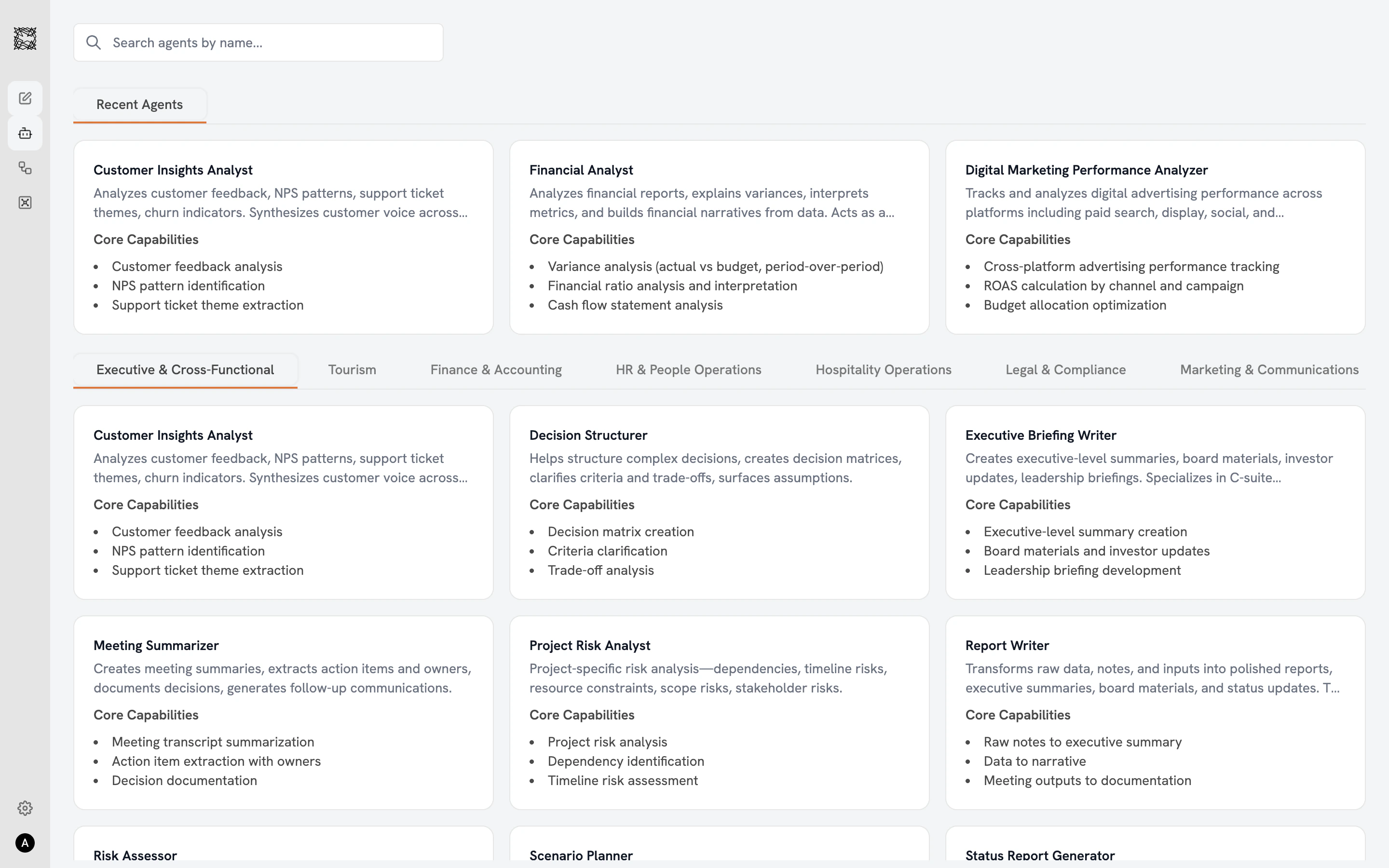
Browsing the catalog
The Agent catalog displays all 77 Agents in a three-column card grid. A search bar at the top lets you find Agents by name. The “Recent Agents” row shows Agents you have worked with recently (personalized to you). Department filter tabs across the top let you browse by function: Executive & Cross-Functional, Tourism, Finance & Accounting, HR & People Operations, Hospitality Operations, Legal & Compliance, Marketing & Communications, Operations & Procurement, Product & Technology, Strategy & Research, and Sales & Business Development. Each Agent card shows the Agent’s name, a one-to-two sentence description, and three to four core capabilities. Click any card to open the detail view.Selecting an Agent
The detail view shows three sections:- Use Cases: Five example prompts showing what this Agent does best. Use them directly or adapt to your specific task.
- Core Capabilities (green checkmarks): The full list of skills this Agent brings to every conversation.
- Limitations / Quality Standards (red indicators): What to keep in mind when reviewing results. Some Agents note data requirements; others set quality benchmarks.
Agent conversations include four capability icons in the input bar: Attachment, Actions & MCP, Deep Research, and Knowledge Grounding. For Web Search, Data & Graph, and the Agent selector, start a regular conversation from the Chat home screen.
Getting better results
- Be specific. Describe the task, the audience, and the format you want.
- Attach context. Upload files or enable Knowledge Grounding to give your Agent access to relevant data.
- Save Memories. Go to Settings > Personalization to store notes about your preferences. Your Agents reference these automatically.
- Use the right specialist. A budget question goes to the Financial Analyst. A contract review goes to the Contract Reviewer.
Working with Agents
What to expect when you start a conversation
Workflows
When you need multiple Agents working together