

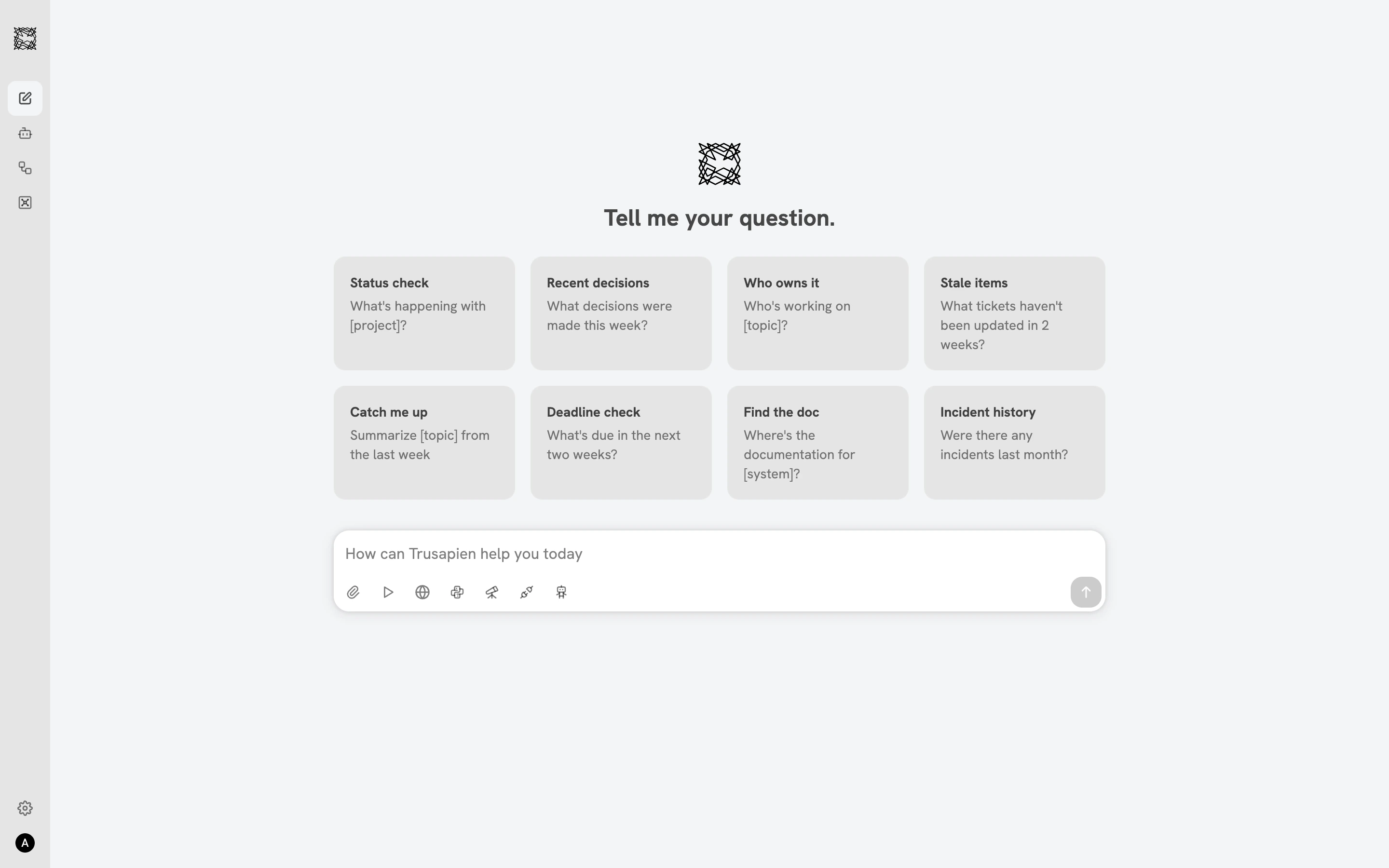
Chat
Chat is the central workspace. Every conversation in Trusapien happens here, whether you are working with an Agent, running a Workflow, or asking a general question. The home screen greets you with eight prompt suggestion cards (Status check, Recent decisions, Catch me up, and more) that help you start working immediately. Click any card to send that prompt. Below the input bar, seven capability icons let you toggle features on and off for each conversation: attach files, activate Actions & MCP, search the web, analyze data with Data & Graph, conduct Deep Research, search your connected data through Knowledge Grounding, or select a specialist Agent.Agents
Your specialist partners, ready to work. 77 Agents across 11 departments cover Marketing, Sales, Finance, HR, Legal, Operations, Product, Strategy, Tourism, Hospitality, and Executive functions. Each Agent is purpose-built for a specific job and pre-configured with the expertise it needs. Browse the Agent catalog by department, search by name, or check your recently used Agents. Every Agent card shows a description and core capabilities. Click into any Agent to see example prompts (Use Cases), a full capability list (green checkmarks), and quality standards (red indicators). Click “Work with Agent” to start a new conversation. When you work with an Agent, a blue identity banner confirms who you are working with: “I’m [Agent Name] and we’re working on this together.” Your Agent shows its thinking process in real time, delivers structured responses, and references your connected tools when relevant.Workflows
Agents working together. 71 Workflows across 11 departments bring multiple Agents together in sequence, each Sub-agent building on the previous one’s output. The final Sub-agent synthesizes everything into a single comprehensive deliverable. After choosing a Workflow, a setup page shows each Sub-agent step with its description and capabilities. Attach Connectors and files to any step for richer results, then click Start Workflow. You can watch each Sub-agent complete in real time, with status indicators showing progress across the sequence. When the Workflow finishes, the conversation continues: ask follow-up questions, request additional analysis, or explore the suggested next steps.Knowledge Grounding and Connectors
Your Agents search your organization’s actual data. 39 Connectors across 7 categories (Knowledge Base & Wikis, Cloud Storage, Ticketing & Task Management, Sales, Code Repositories, and more) bring your company’s documents, tickets, and records into every conversation. Toggle Knowledge Grounding on with the two-plug icon in the input bar, then filter by specific Connectors (Confluence, Jira, Google Drive, and others). Each Connector indexes your data automatically after a three-step setup: select a credential, configure the connection, and optionally adjust advanced settings.Knowledge Grounding searches data from your connected sources. It does not access files uploaded to Vaults or attached directly to conversations. For large datasets like Excel files, the File Connector is the recommended path.
Capabilities
Seven capabilities are available from the input bar in every conversation. Toggle them on with a single click.One capability is active at a time. Click the active icon again to deactivate it and return to the default conversation mode.
Vaults
Persistent file storage for your documents. Create folders and subfolders, upload PDFs, spreadsheets, and other files, then access them across any conversation. Select files and click “Chat with files” to start a new conversation with those documents pre-attached.Why Trusapien?
Pre-configured, not assembled. Every Agent and Workflow is ready to work. No prompts to write, no configurations to build, no technical setup required. Grounded in your data. Connect your organization’s tools through 39 Connectors. Results draw on your actual documents, policies, and data. Multiple Agents, one deliverable. Workflows combine specialist perspectives into comprehensive outputs that no single conversation could produce. 5 pre-configured Actions. GitHub, Atlassian, Notion, HubSpot, and GitLab integrations work out of the box. Add any custom MCP server for additional tools.Quickstart
Your first 10 minutes with Trusapien
Agents
Browse 77 Agents across 11 departments
Workflows
Agents working together in sequence
Connectors
Connect your organization’s data sources