

1
Explore the Chat home
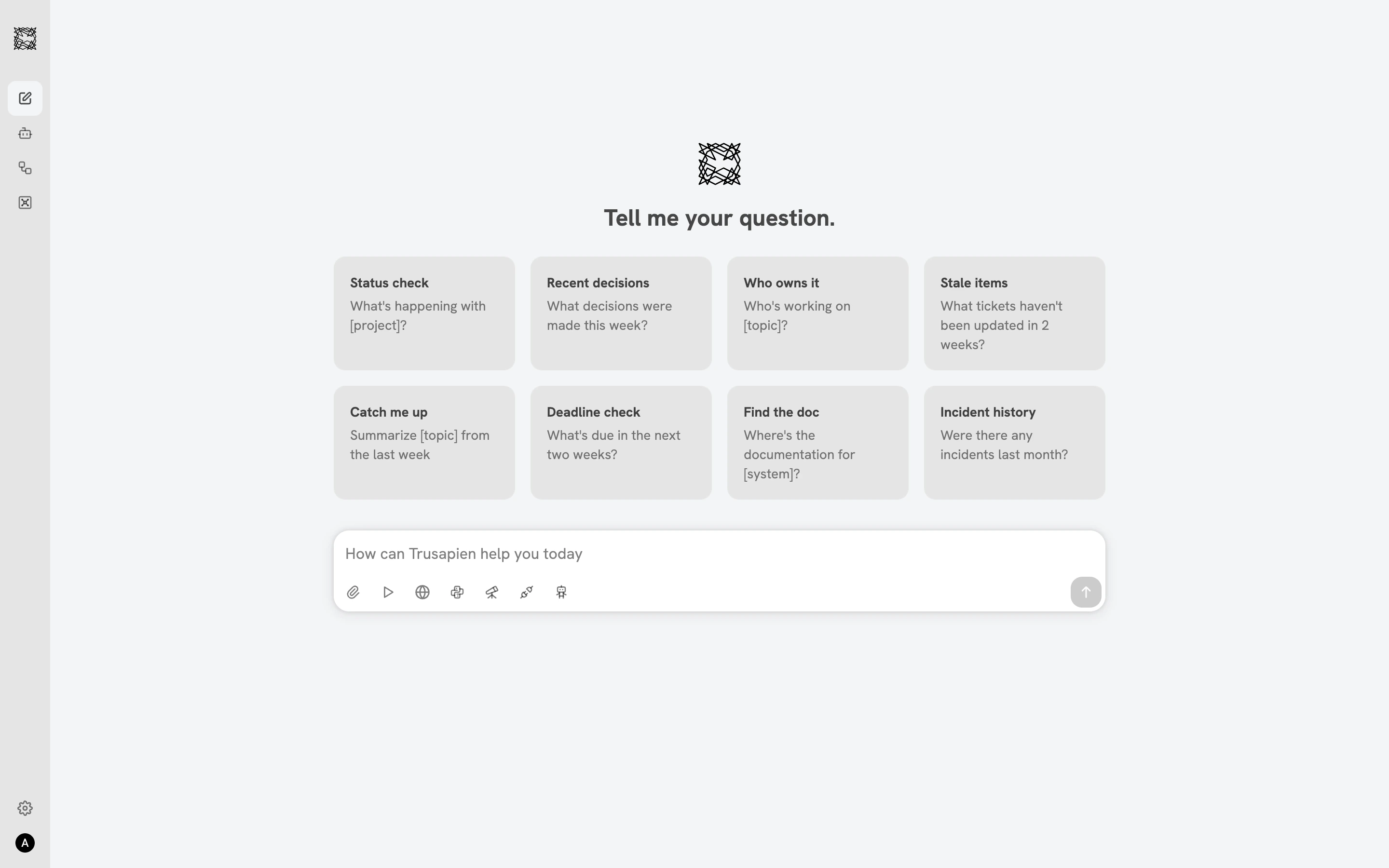
When you sign in, you land on the Chat home screen. Three zones make up the layout: a collapsible sidebar on the left (with links to Agents, Workflows, and Vaults), a greeting area with eight prompt suggestion cards in the center, and the input bar with seven capability icons at the bottom.The prompt cards offer quick starting points. Click “Status check” to ask about a project, “Catch me up” to get a summary, or “Find the doc” to locate documentation. Each card fills the input bar and sends the prompt immediately.
2
Browse and choose an Agent
Click Agents in the sidebar to open the Agent catalog. Your 77 Agents are organized by department tabs: Executive, Tourism, Finance, HR, Hospitality, Legal, Marketing, Operations, Product, Strategy, and Sales. A “Recent Agents” row at the top shows Agents you have worked with before.Each Agent card displays a description and three to four core capabilities. Click any card to open the detail view: five example prompts (Use Cases), a full capability list (green checkmarks), and quality standards (red indicators).Click “Work with Agent” to start a new conversation.
Not sure which Agent to choose? Match the Agent to your task. A budget question goes to the Financial Analyst. A contract review goes to the Contract Reviewer. Each Agent’s detail view shows exactly what it specializes in.
3
Start working
Your Agent conversation opens with a blue identity banner: “I’m [Agent Name] and we’re working on this together.” Type your question in the input bar and press Enter.Your Agent processes your request and shows its thinking in real time (step names and reasoning are visible). Once complete, the thinking section collapses and the structured response appears: formatted text, bullet lists, tables, and suggested next steps.Below each response, three icons let you give feedback (thumbs up, thumbs down) or copy the response.
4
Toggle capabilities
The input bar includes seven capabilities you can toggle during any conversation. Click an icon to activate it; click again to deactivate.
- Knowledge Grounding (two-plug icon): Search your connected data sources. Toggle on to reveal per-Connector filters (Confluence, Jira, Google Drive, and others).
- Web Search (globe icon): Search the public internet for current information, news, and research.
- Data & Graph (Python logo icon): Upload data and create calculations, analyses, and visualizations.
- Deep Research (telescope icon): Conduct extended, in-depth research across multiple sources.
- Actions & MCP (play icon): Take action in connected tools. Search Jira tickets, update Confluence pages, create GitHub issues.
- File Attachment (paperclip icon): Upload files from your device, select from your Vault, or pick recent files.
- Agents (robot head icon): Select a different specialist Agent without leaving the current screen.
What to explore next
Agents
Browse all 77 Agents across 11 departments
Workflows
Agents working together in multi-step sequences
Vaults
Store and organize your documents
Connectors
Connect your organization’s data sources