Your tools stay where they are. Trusapien connects to them, and your Agents search that data through Knowledge Grounding. 39 Connectors across 7 categories cover knowledge bases, cloud storage, ticketing systems, sales tools, code repositories, and more. Once connected, your Agents deliver answers grounded in what your organization actually knows.
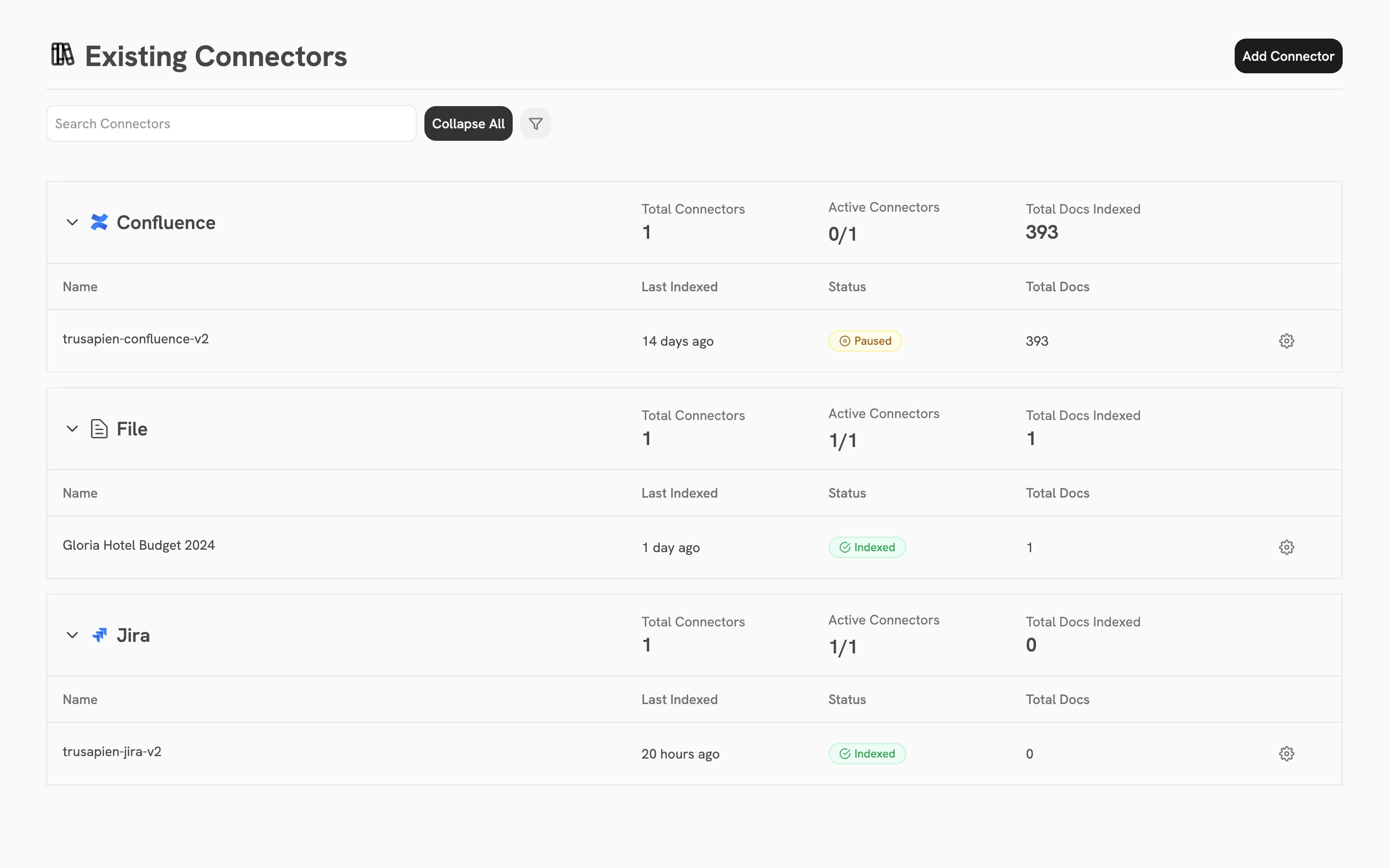
Existing Connectors page showing configured connectors with status, document count, and indexing details

7 categories, 39 Connectors

CategoryConnectors
Knowledge Base & WikisConfluence, SharePoint, Notion, BookStack, Document360, Discourse, GitBook, Slab, Outline, Google Sites, Guru, MediaWiki, Axero, Wikipedia
Cloud StorageGoogle Drive, Dropbox, S3, Google Storage, Egnyte, Oracle Storage, R2
Ticketing & Task ManagementJira, Zendesk, Airtable, Linear, Freshdesk, Asana, ClickUp, ProductBoard
SalesSalesforce, HubSpot, Gong, Fireflies, Highspot, Loopio
Code RepositoriesGitHub, GitLab, Bitbucket
OthersFile (upload and index documents directly)

Setting up a Connector

Go to Settings > Connectors, then click “Add Connector.” The setup wizard walks you through three steps:
1

Credential

Select an existing credential or create a new one with the authentication your tool requires. Each credential stores access details securely.
2

Connector

Name your Connector, enter the connection URL, and choose what to index. Indexing scope varies by Connector type. For Confluence, you can choose everything, a specific space, an individual page, or a CQL query.
3

Advanced (optional)

Configure three settings: Prune Frequency (how often to remove deleted documents, default 24 hours), Refresh Frequency (how often to pull new documents, in minutes), and Indexing Start Date (exclude documents older than a specific date).
After setup, your Connector appears on the Existing Connectors page. Each row shows the Connector name, active instance count, total documents indexed, and a status badge (green “Indexed” or yellow “Paused”). Click the gear icon on any instance to view details, re-index, pause, or delete.
For large files and datasets, the File Connector is the recommended path. Your Agents search and analyze the data automatically through Knowledge Grounding. This handles large spreadsheets and data exports that benefit from indexed search.
Having trouble setting up a Connector? Contact us at support@trusapien.com

Browse all Connectors

Setup guides for all 39 Connectors

Knowledge Grounding

How your Agents search your connected data