

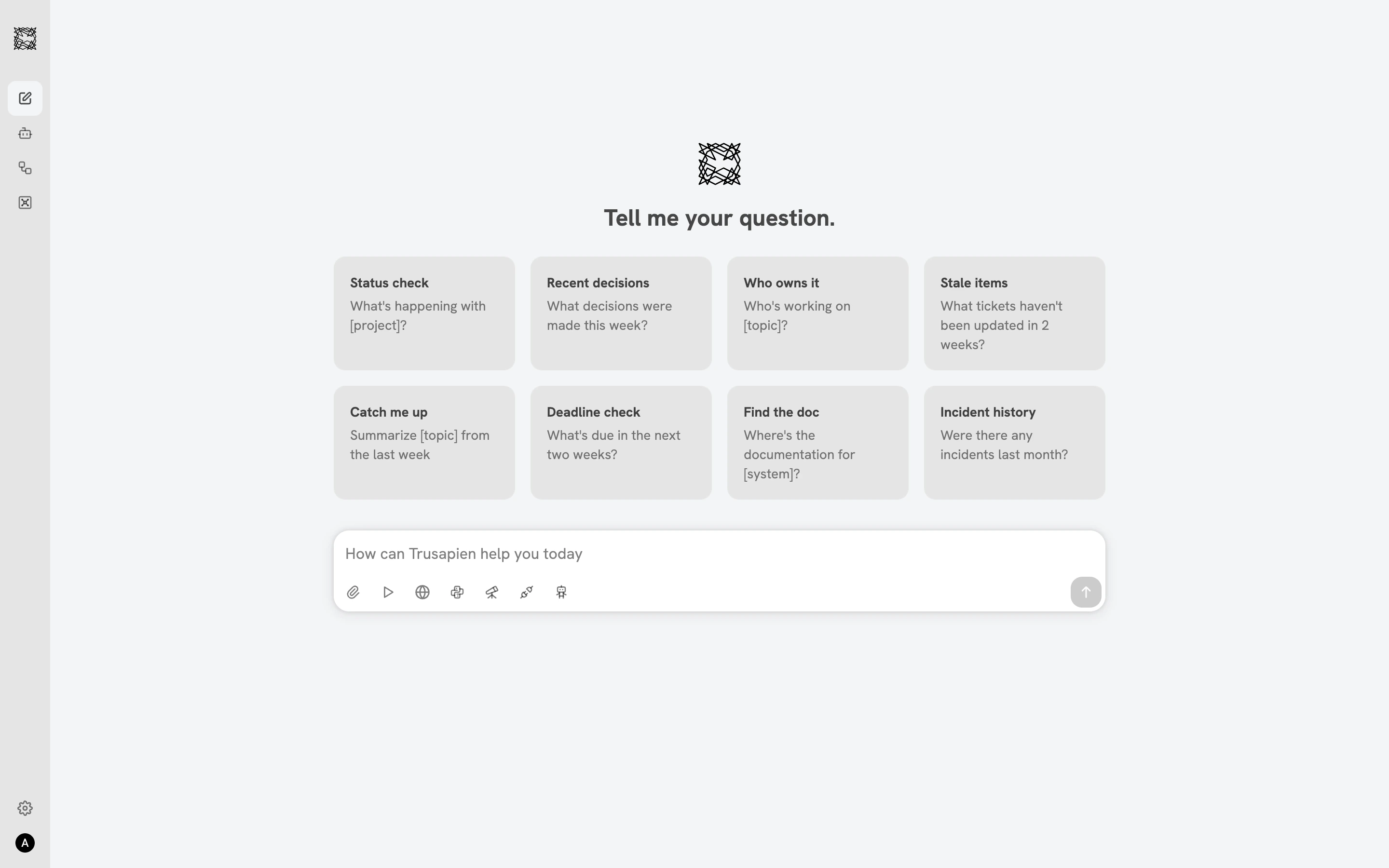
The home screen
When you open Chat, three zones organize your workspace. The collapsible sidebar on the left provides navigation to Agents, Workflows, and Vaults, along with your scrollable conversation history. The greeting area in the center displays the Trusapien brand mark, a rotating greeting, and eight prompt suggestion cards arranged in two rows of four. The input bar at the bottom is where you type, with seven capability icons below it. The eight prompt cards are quick-start shortcuts. Each card has a bold title and a description with a placeholder that your Agent fills contextually:
Click any card to send the prompt immediately. The conversation continues naturally from the response.
Seven capabilities
The input bar includes seven capability icons you can toggle on to enhance any conversation:One capability is active at a time. Click the icon to activate, click again to deactivate. When no capability is toggled, the conversation operates as a general-purpose chat.
Three conversation types
Your sidebar shows three distinct conversation types, each with its own icon:- Agent conversations (Agent icon + name): Started by selecting an Agent. A persistent blue identity banner appears at the top. Four capability icons are available (Attachment, Actions, Deep Research, Knowledge Grounding).
- Workflow conversations (“Workflow: …” prefix): Started by running a Workflow. A split-screen layout shows the conversation on the left and Workflow progress on the right.
- Regular conversations (no icon): Started from the Chat home. All seven capability icons are available.
Response interaction
Below every response, three icons let you provide feedback or save the output. Thumbs up marks a helpful response. Thumbs down flags a response that missed the mark. Copy copies the full response to your clipboard.Agents
Choose a specialist for focused work
Capabilities
See how to toggle capabilities in any conversation